
How to Share a Spreadsheet on a Call Without Showing Private Data
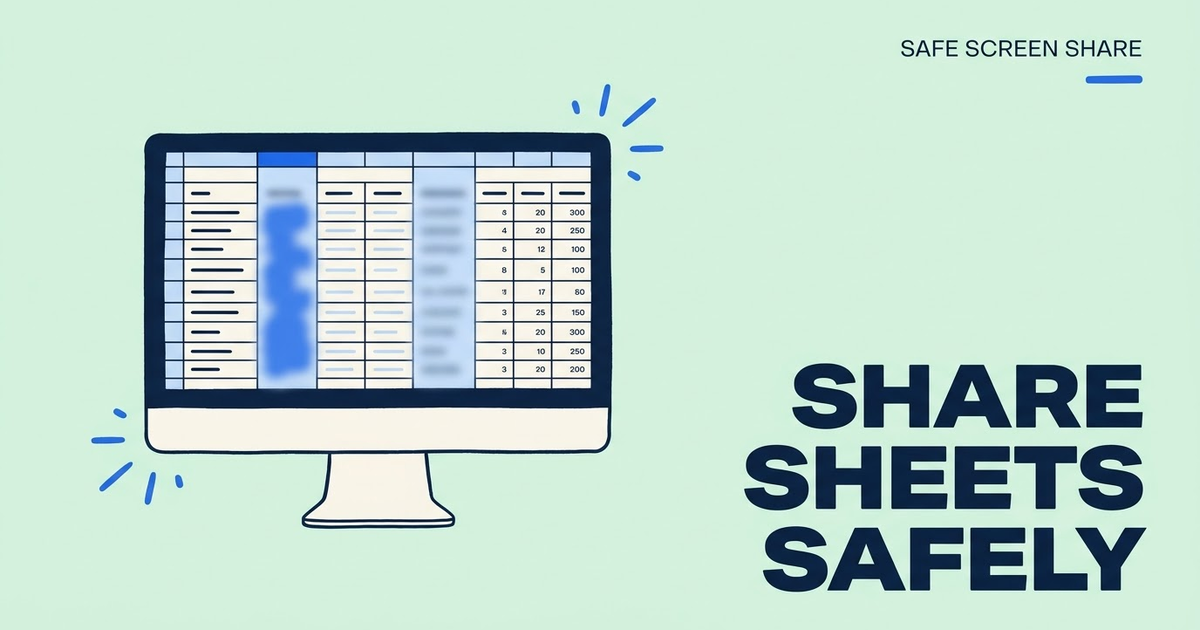
Spreadsheets are where private data piles up. A budget sits next to salaries. A customer list has emails, phone numbers, and notes in the columns you scroll past. Another tab holds last quarter's numbers you never meant to show.
The safest way to present a spreadsheet is a copy that contains only what the meeting needs. When you have to show the real file, narrow the view, check every tab, and blur the cells that must stay on screen. Here is how to do each step in Google Sheets and Excel.
Make a demo copy with only the rows and columns you need
Use a filter view or sheet view to show one slice
Look at every tab, comment, and formula bar
Blur cells that must stay visible but stay private
Where private data hides in a spreadsheet
The cells you plan to talk about are rarely the problem. The leaks come from everything around them: the next column over, the tab bar at the bottom, the formula bar, the comments, and the version you open by mistake.
- Columns to the right that you scroll past, such as emails, phone numbers, or salaries.
- Tab names that reveal other projects, clients, or HR data.
- The formula bar, which shows the full value of the selected cell.
- Comments and notes with names and internal opinions.
- Recently opened files and the account menu in the corner.
Make a demo copy first
A copy is the only option that truly removes data. Make a copy of the file, delete the tabs you do not need, then delete the private columns and rows. Replace real names with sample ones if the structure matters but the people do not.
Deleting is different from hiding. Hidden rows and columns are still in the file, and anyone with access can unhide them. If you will share the file itself after the call, a copy with the data deleted is the safe choice.
Hide columns and rows for a live view
When you need to present the real file, hiding is a quick way to clean up the screen. In both Google Sheets and Excel, select the columns or rows, right-click, and choose to hide them. A small marker shows where something is hidden.
Hiding changes the view for everyone who has the file open, so warn collaborators or do it in a copy. Unhide everything after the call so nobody is confused later.
Use filter views and sheet views
Google Sheets filter views let you sort and filter without changing what other people see. Open the Data menu, create a filter view, and filter down to the rows you want to present. If you only have view access, you can still create a temporary filter view that only you can use.
Excel has a similar feature called Sheet View for files stored in OneDrive, SharePoint, or Teams. It lets you sort and filter your own view without disturbing collaborators. Filters only remove rows. Private columns stay visible, so combine a filter with hidden columns or blur.
Protected ranges do not hide anything
A common mistake is to protect a range and assume it is private. In Google Sheets, protecting a range only controls who can edit it. People with view access can still see every protected cell. Excel sheet protection works the same way: it limits changes, not visibility.
If you need to keep a value private, delete it from the copy you present or blur it on screen.
Pivot tables, charts, and linked data
Summaries can feel safe because they hide the raw rows. But a pivot table can be expanded with one click, and a chart can show the source range when you select it. If the raw data is private, build the summary in your demo copy and paste it as values, so there is nothing to drill into.
Linked data needs the same care. A sheet that imports from another file or a connected data source may show that file name or connection details. Paste values into the copy before you present.
Blur cells that have to stay on screen
Sometimes the private value has to stay in place. You are walking through a formula, and the inputs are real customer numbers. You are showing a payroll template, and the names are in column A. This is where blurring the page helps.
Google Sheets and Excel for the web run in the browser, so a blur extension can hide parts of the page before your screen share or recording captures them. With Safe Screen Share you can blur a cell area or selected text by hand for free. Freeze panes and zoom in so the blurred area does not move as you scroll, and test it with a quick self-recording first.
- Freeze the header row so labels stay put.
- Zoom to a fixed level before you blur.
- Blur the formula bar if it can show a private value.
- Scroll the whole path once to check nothing slips past.
Check formulas, comments, and history
A tidy grid can still leak through the edges. Click a few cells and read the formula bar. A total that looks harmless may reference a tab called "Salaries" or a file name with a client in it. Lookup formulas often show the name of the sheet they pull from.
Comments and notes are easy to forget. Turn off comment indicators or resolve old threads in your demo copy. Avoid opening version history or the file menu during the call, since both list names, edits, and other files.
- Formula bar checked for sheet names and file paths.
- Comments and notes resolved or removed in the copy.
- Named ranges and data validation lists checked for private values.
- Charts checked for labels that come from private columns.
Clean up tabs and menus
The tab bar at the bottom of the sheet is visible the whole time you present. Tab names like "Layoffs Q1" or a client name say a lot on their own. In your copy, delete tabs you do not need. In the real file, hide tabs before the call or rename them to something neutral.
Your account menu, the file name, and the recent files list sit at the top of the window. Close the file picker before you share, and keep the file name generic in the demo copy.
Present the spreadsheet safely
Share the browser tab or the app window, not your full screen. Turn on Do Not Disturb so chat previews and email alerts stay off the call. Open the file to the exact tab and cell before you start sharing.
If someone asks to see a tab you did not prepare, stop sharing, check it privately, then share again. A short pause is better than a private tab on the recording.
After the call
If the call was recorded, watch the parts where you scrolled or switched tabs before the recording is shared. If you hid rows or columns in the real file, unhide them so collaborators are not confused. If you promised to send the numbers, send the demo copy, not the original.
Practical examples
Common spreadsheet calls
- Budget review: a copy with salaries summed into one line.
- Client report: one client's rows in a filter view, other clients hidden.
- Hiring tracker: candidate names blurred, stages and dates visible.
- Sales pipeline: deal values shown, contact emails deleted from the copy.
Related guides
- Share a CRM without exposing customer data
- Demo software without exposing customer data
- Share a window vs entire screen
Official sources
- Google: Sort and filter your data
- Google: Protect a sheet or range
- Microsoft: Hide or show rows or columns
Frequently asked questions
Can people unhide columns I hid before the call?
Anyone with access to the file can unhide them later. During a screen share they only see your screen, but if you send the file, delete private columns instead of hiding them.
Does a protected range hide data in Google Sheets?
No. Protection only limits editing. Viewers can still see protected cells.
Will a filter view change what my team sees?
No. A Google Sheets filter view only changes your view. Others see the normal sheet unless they open the same filter view.
Can I blur cells in the Excel desktop app?
Safe Screen Share works on web pages, so it covers Google Sheets and Excel for the web. For the desktop app, use a demo copy or hide columns.
Need to hide sensitive details that must stay on screen? Try Safe Screen Share.