
Introducing Safe Screen Share 4.0
Safe Screen Share 4.0 is the biggest update we have shipped. We rebuilt the extension from scratch, renamed a few things so they say what they do, and moved settings into one place.
If you used 3.x, the most important part first: you did not lose anything. Your saved blurs, words, sites, profiles and license all moved over by themselves. This post shows what changed and where everything lives now.
Your setup moved over
The first time 4.0 runs, it copies everything from the old version into the new one. A page then opens and shows what came across: hidden items, sites, your words, profiles and your license.
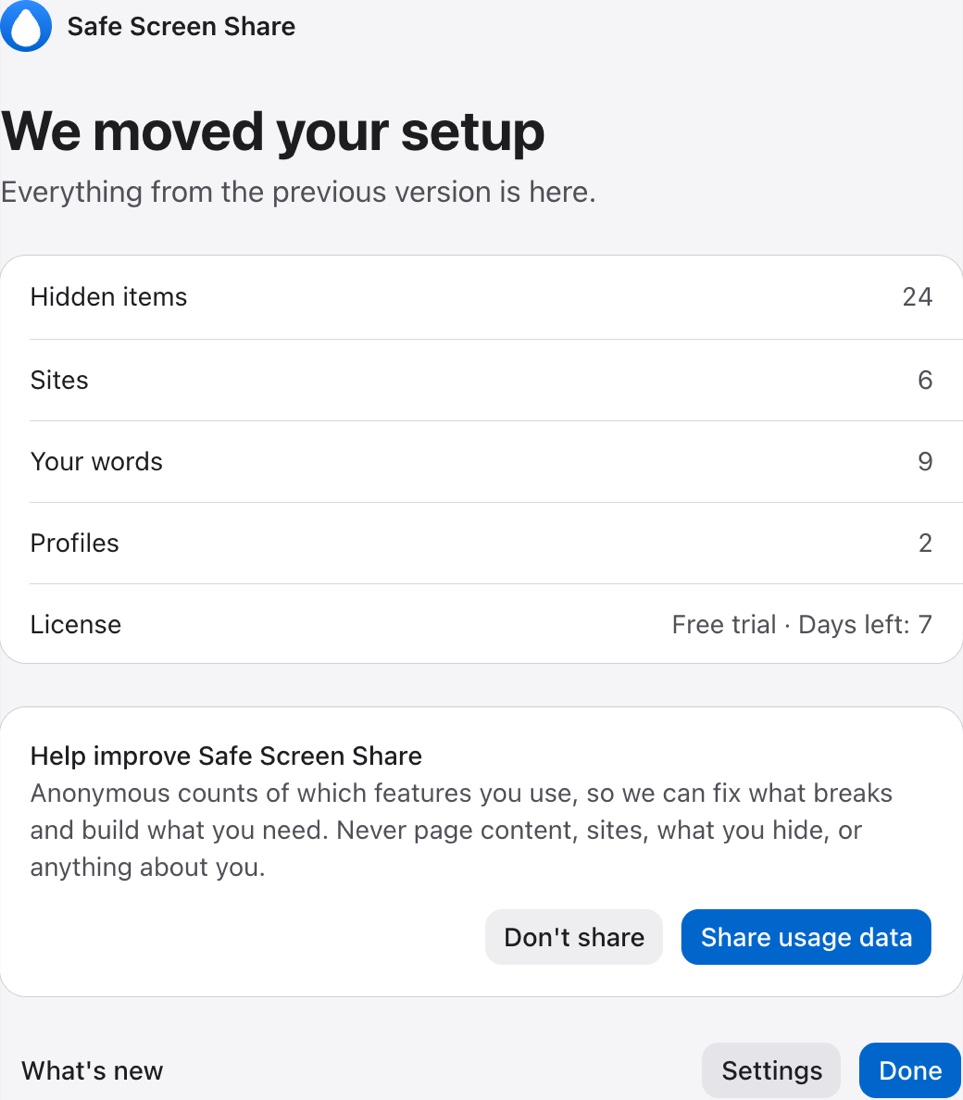
- Saved blurs are now called Hidden items. They come back on the same pages, as before.
- Always hide words are now Your words, with the same wildcards and patterns.
- Profiles keep their own hidden items, words and sites.
- Your license works as before. Same key, same browsers. Nothing to re-enter.
We also keep an untouched copy of your old data in the browser for 30 days. If anything looks off, write to us and we can bring it back.
Were you on the free plan? 4.0 gives you the full 7-day trial, so you can try everything new before deciding.
Where things moved
Most features kept working the same way. Some got a clearer name:
| In 3.x | In 4.0 | Where |
|---|---|---|
| Meeting Mode | Auto-protect | Top of the popup, and Settings, Auto-protect |
| SmartBlur | Auto-hide | Settings, Auto-hide |
| Always hide | Your words | Settings, Auto-hide, Your words |
| AI Redact | Deep scan | Settings, Auto-hide, Deep scan |
| Blur tools | Hide things | The first button in the popup |
| Saved blurs | Hidden items | Settings, Hidden items |
| Whole-page blur sites | Private sites | Settings, Private sites |
| Blur and Blackout | Blur, Blackout and Erase | Settings, Style |
| Profiles | Profiles | Settings, Profiles |
The popup
The popup now has three parts, top to bottom:
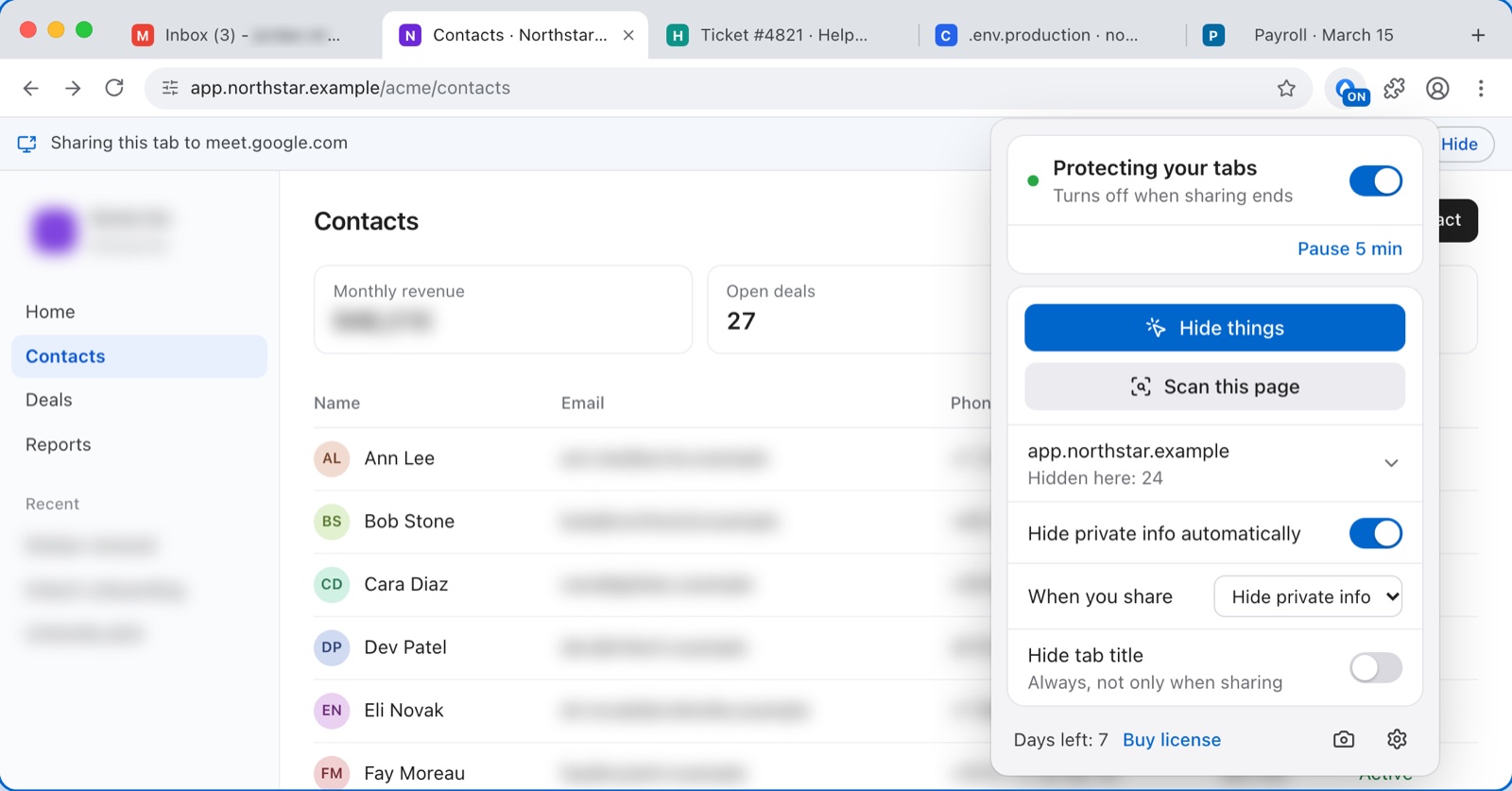
- Protection. Shows whether your tabs are protected, with a switch and a Pause button. The toolbar icon shows ON while it runs.
- Hide things and Scan this page. The first opens the toolbar to click, select text or drag over an area. The second hides private info on the page right now.
- This site. Turn automatic hiding on or off here, choose what happens when you share (hide private info, show everything, or cover the page) and hide the tab title.
Settings
Everything else is in Settings (the gear in the popup), one section per topic: Auto-protect, Auto-hide, Private sites, Hidden items, Profiles, Style, Shortcuts, Backup and data, and your license.
What is new
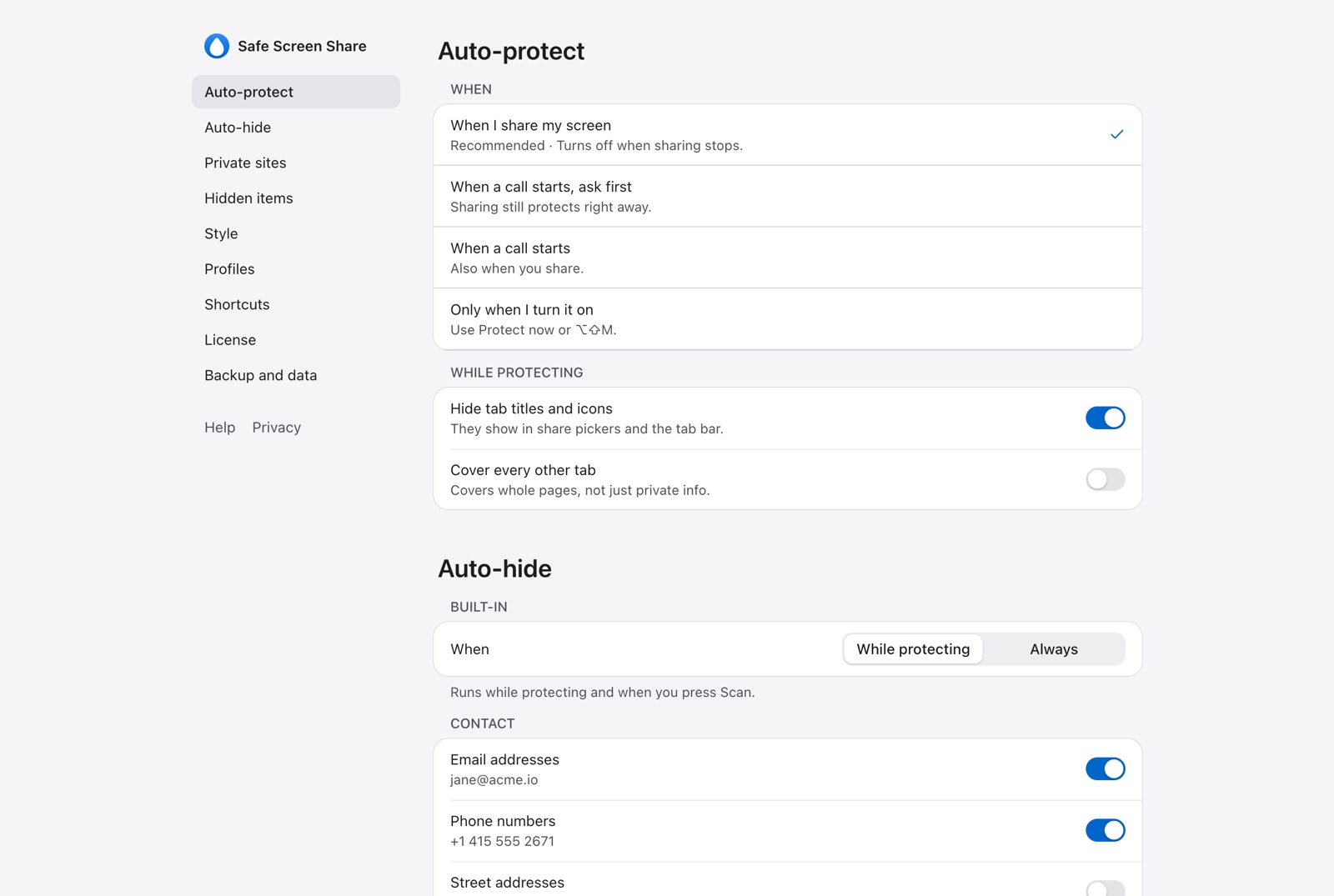
Turns on when you share
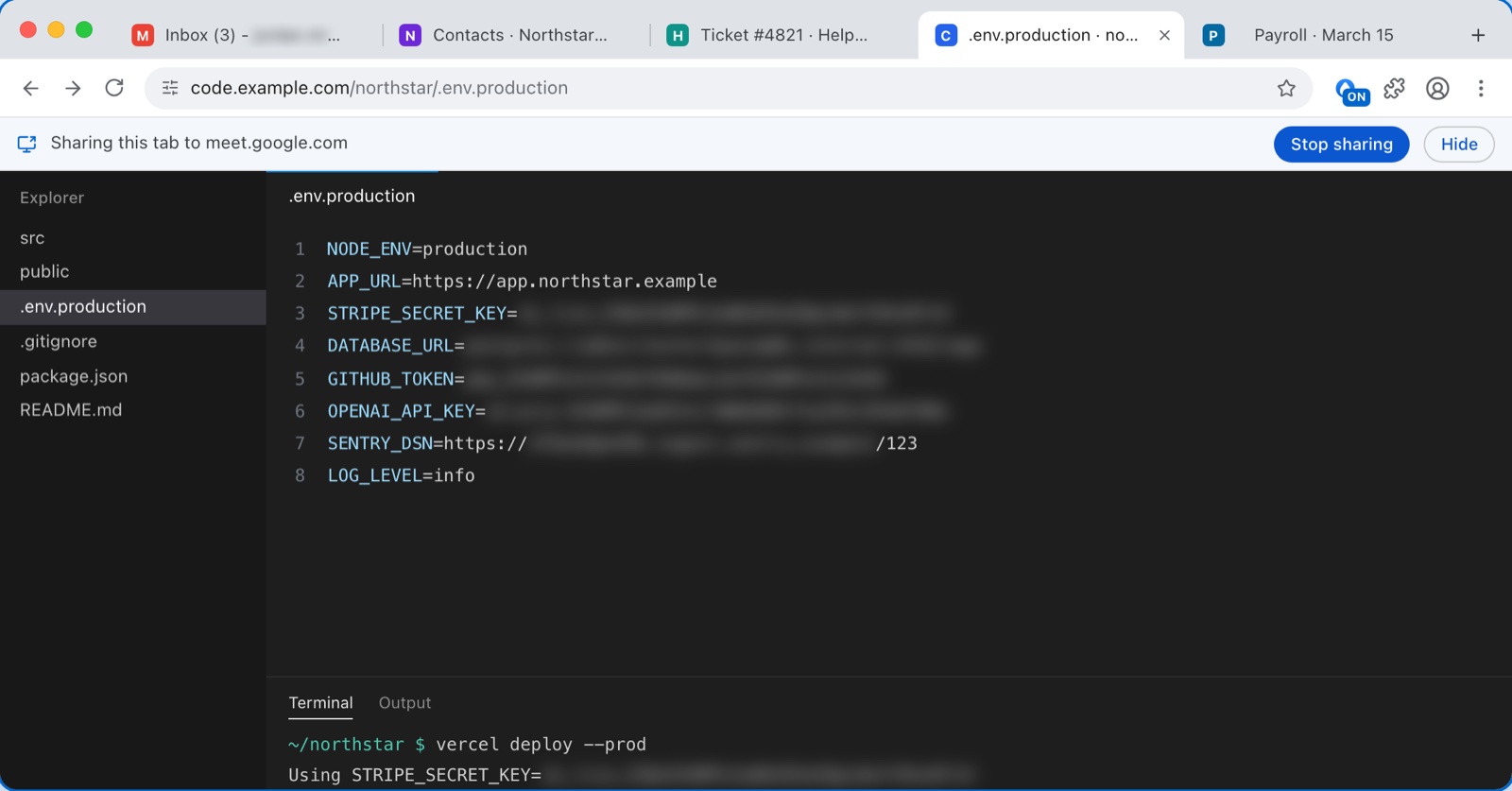
Auto-protect starts the moment you share your screen from the browser and stops when you stop. You can also have it start with every call, ask first, or only run when you turn it on. Tab titles and icons can be hidden too, since they show in share pickers.
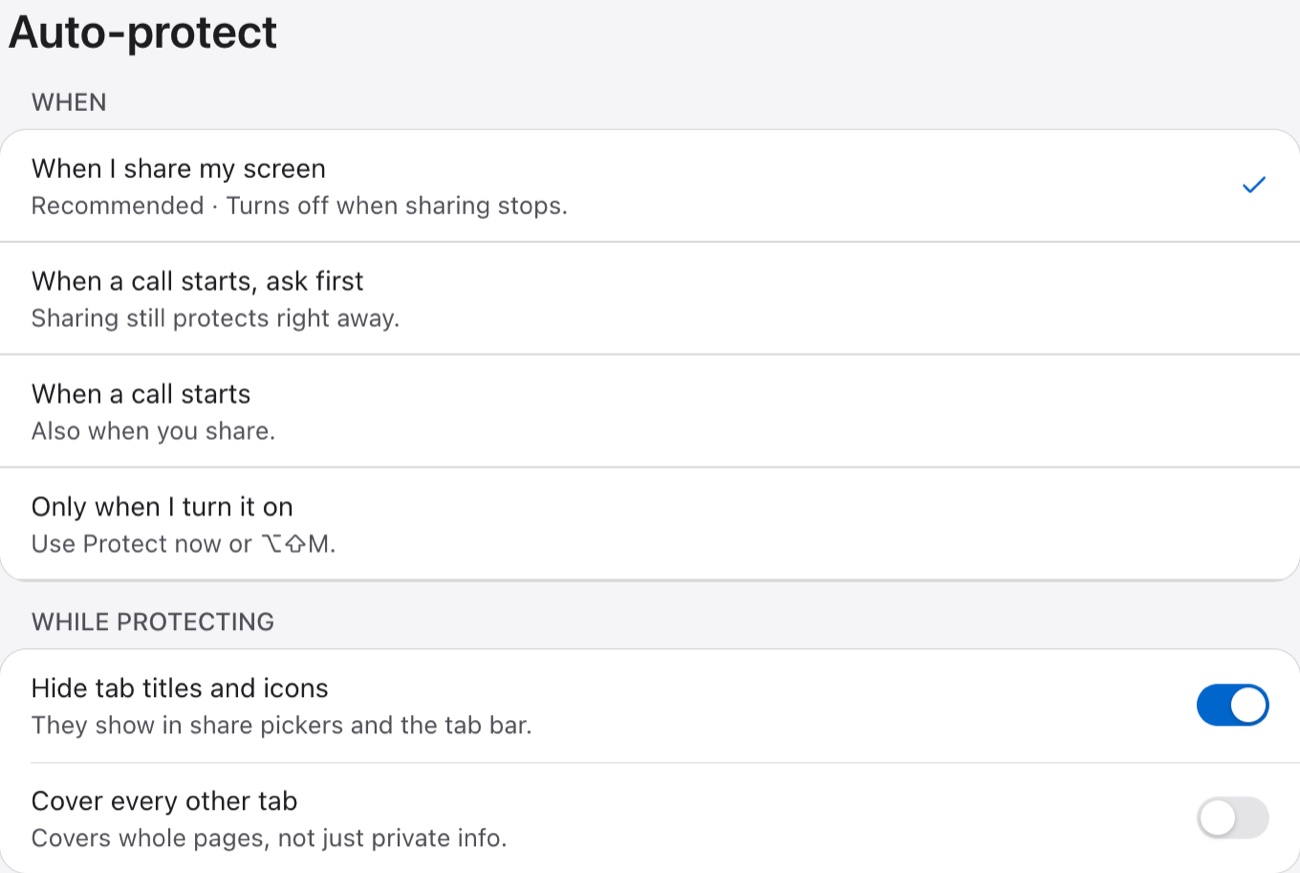
More than 50 kinds of private info
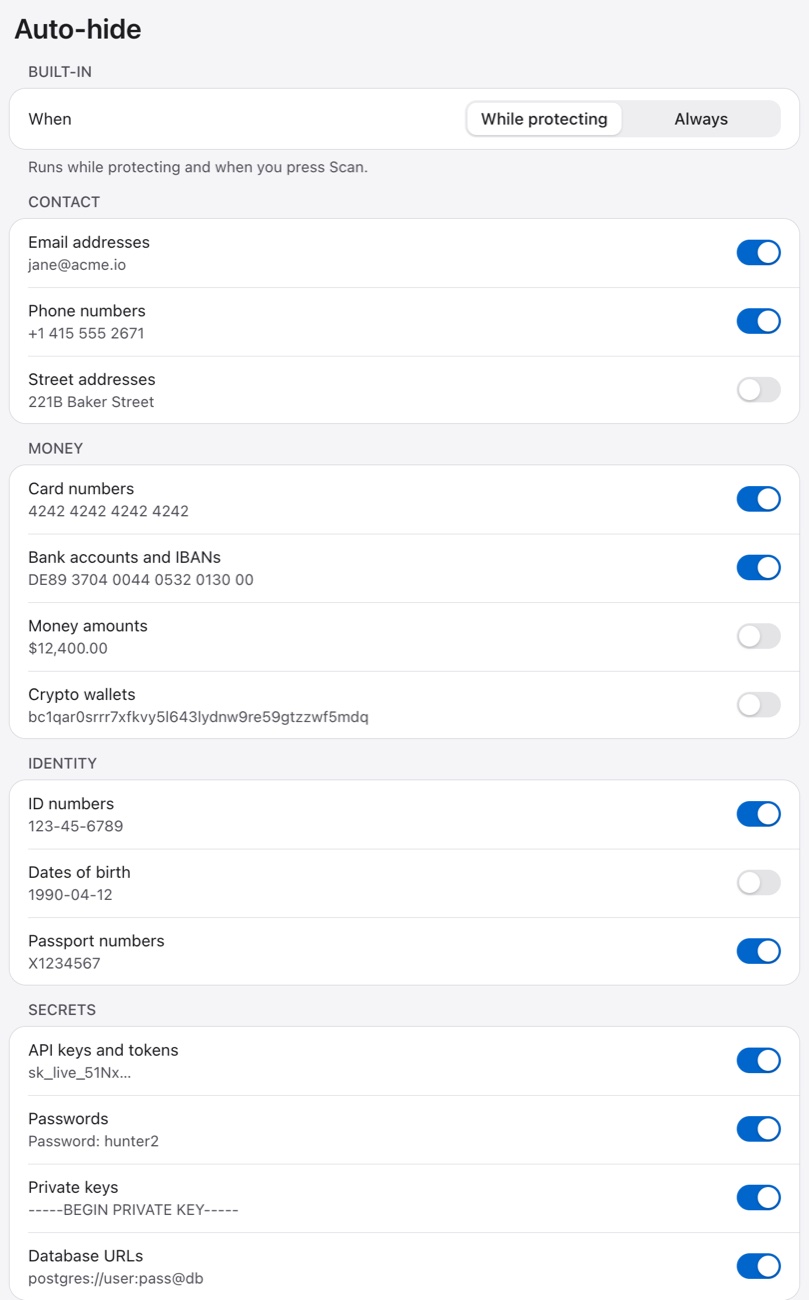
Emails, phone numbers, addresses, card numbers, bank accounts, ID numbers, API keys, passwords, private keys, database URLs and more. Each one has its own switch, with an example of what it catches. Names of your other clients in workspace switchers and menus stay hidden too.
Your words, and a way to test them
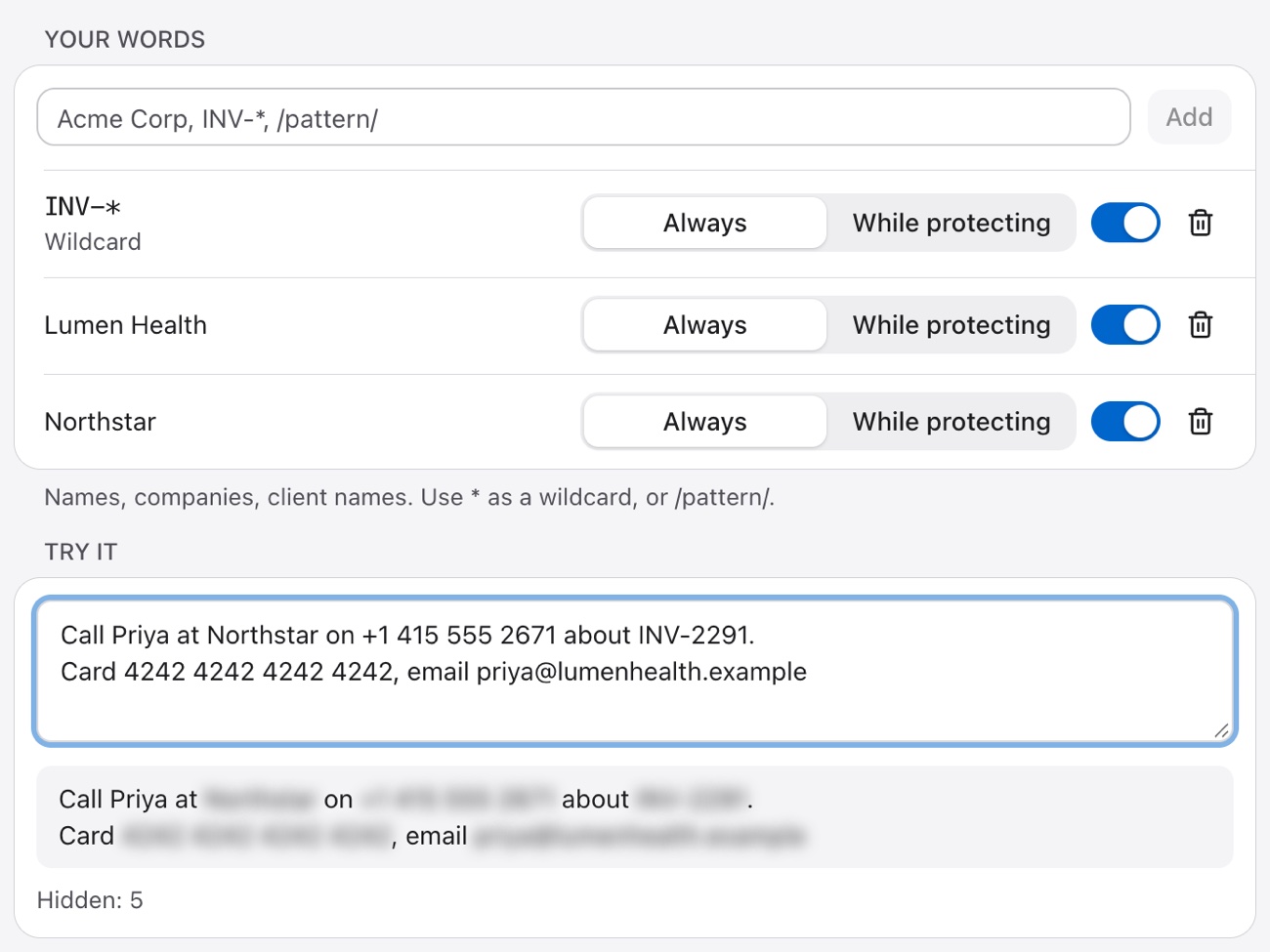
Add client names, project names or any pattern once, and they are hidden on every site. Then paste some text in Settings and see exactly what gets hidden before a call.
Hide anything by hand
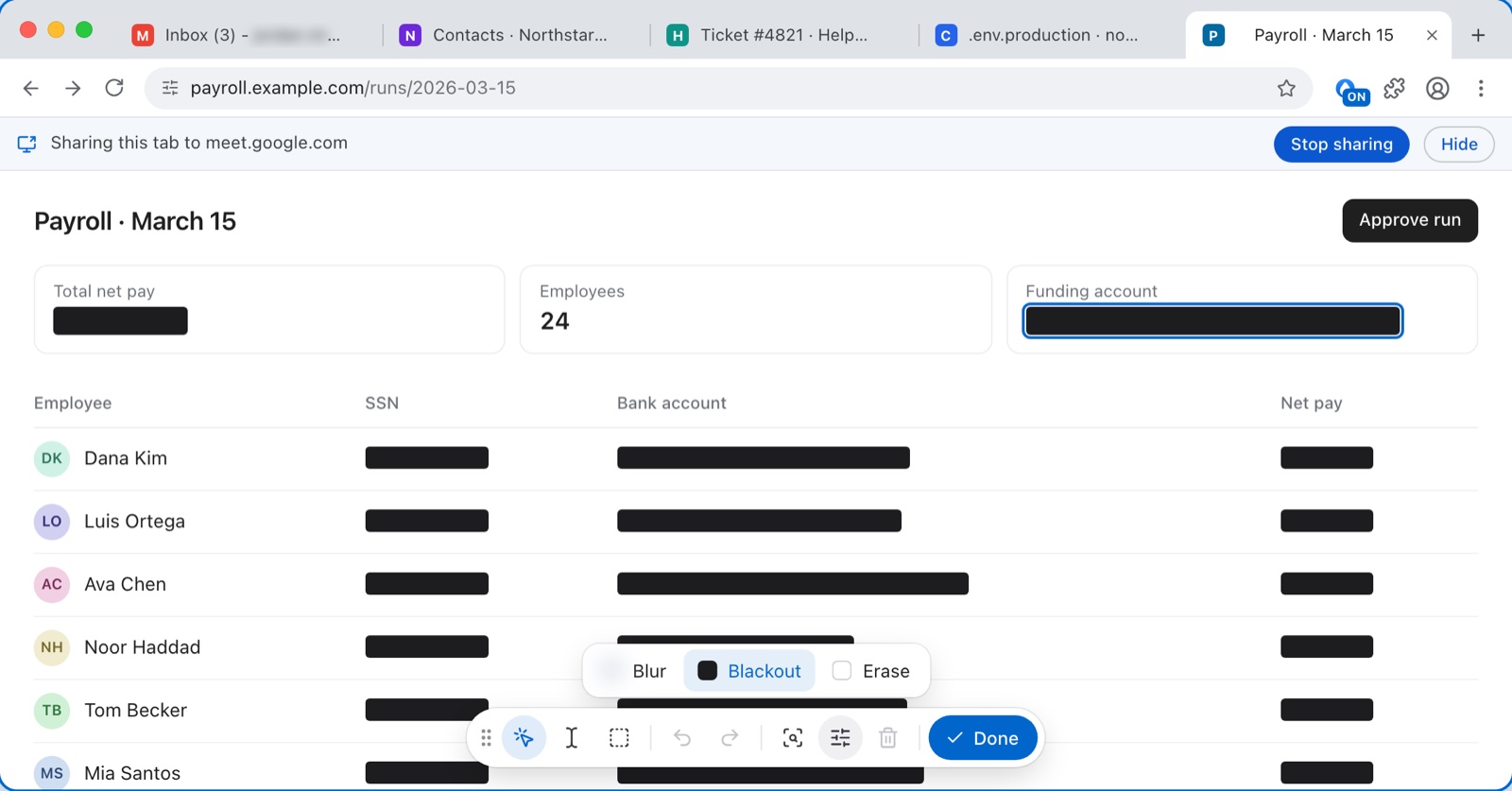
Hide things opens a small toolbar on the page. Click anything to hide it, select text, or drag over an area. Hidden items stay in place when you reload, scroll or move around an app.
Three styles
Blur and Blackout are joined by Erase. Hold Alt (Option on Mac) to peek at what is hidden.
Blur Soft, with the strength you pick.

Blackout Solid boxes. Nothing to read in a recording.

Erase Gone, and the layout stays.

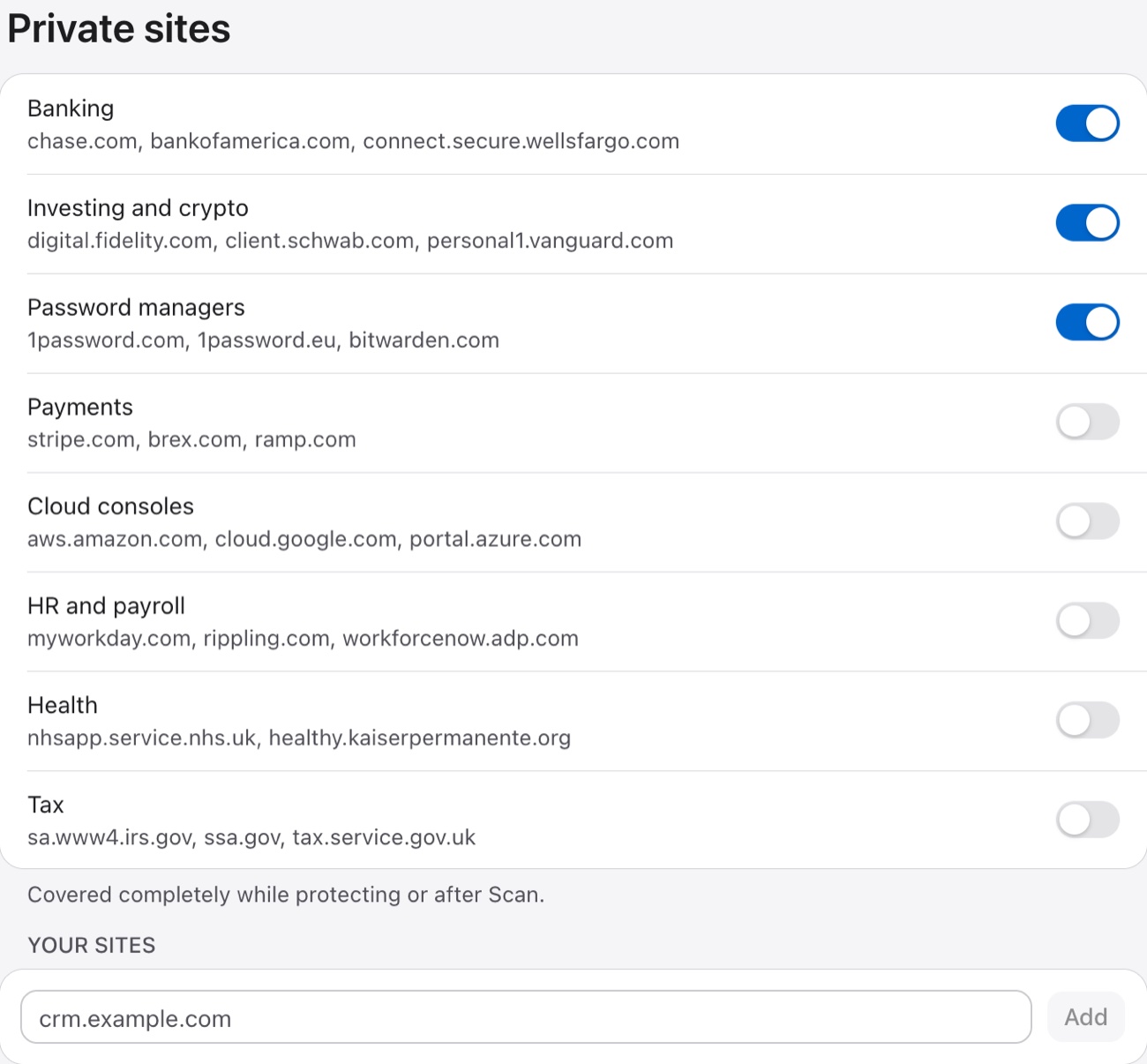
Private sites
Cover your bank, password manager or any site you pick completely while you share. Common ones are built in, and you can add your own. Or cover every tab except the one you present.
And more
- Safe screenshots. Copy a screenshot of the page with everything still hidden, from the popup.
- Backup. Export your setup to a file and move it to another browser.
- 35 languages. The extension now speaks yours.
Shortcuts
- Alt+Shift+M: turn protection on or off
- Alt+Shift+S: hide things
- Alt+Shift+H: pause Auto-hide on this site
- Alt+Shift+K: switch between Blur and Blackout
You can change them in Settings, Shortcuts.
Questions
Do I need to do anything?
No. The update installs by itself, and your setup moves over the first time it runs. It is worth a quick look at Settings, Auto-hide, to pick the kinds of info you want hidden.
Something is missing or looks wrong
Write to us from the support page or reply to any of our emails. Your old data is still in your browser for 30 days, so we can fix it.
Does it work in Edge and Firefox?
Yes. 4.0 is the same on Chrome, Edge and Firefox, and one license covers all of them.
New here?
Safe Screen Share hides emails, phone numbers, API keys and client names on any web page while you share your screen. Try every feature free for 7 days.
The full list of changes is in the changelog. Thanks for sticking with us through the rebuild.