
How to Blur Images on Any Website in Chrome
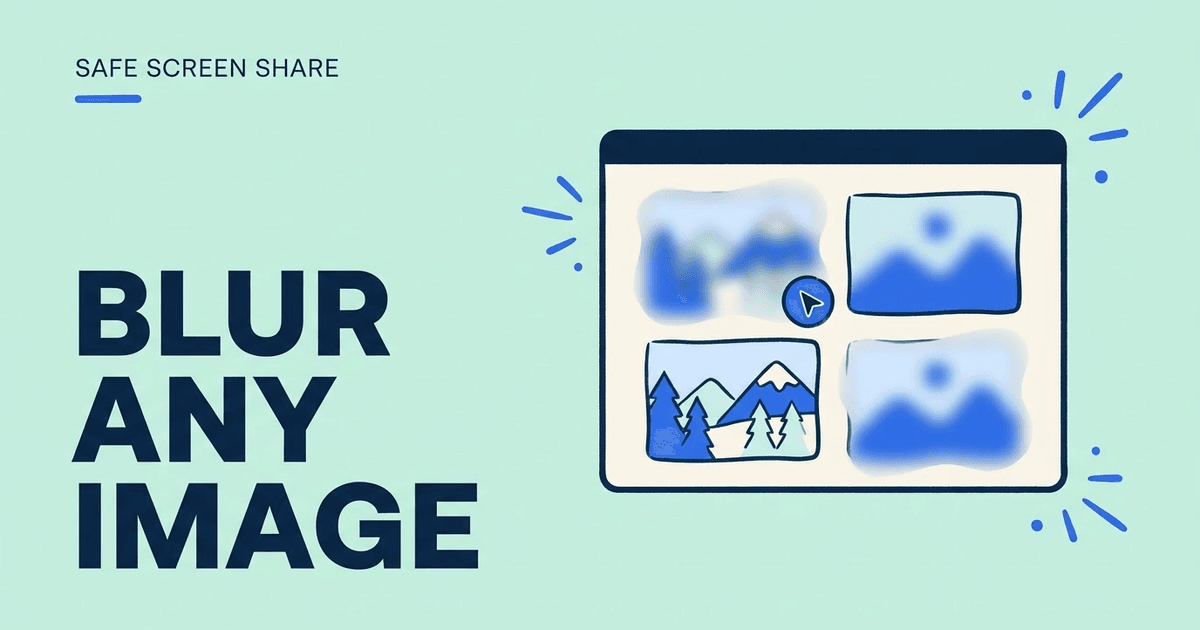
Images leak more than people expect. A profile photo shows who a customer is. A thumbnail in a file list shows a private document. A screenshot pasted into a support ticket can hold an entire inbox. None of it is text, so a quick scan for names and emails will miss it.
Chrome has no single "blur images" button, but you have options. You can turn images off for a site, hide one image with DevTools, redact a static screenshot, or use a blur extension that covers images on the live page. This guide compares each one so you can pick the fastest fit for your call or recording.
| Method | Best for | Effort | Main limit |
|---|---|---|---|
| Block images for a site | Hiding every image on one site | Low | Breaks layouts and hides useful images too |
| DevTools hide element | One image, one time | Medium | Hides instead of blurs and resets on reload |
| Redact a screenshot | Static images in docs or tickets | Low | Not for live pages |
| Blur extension | Live demos, calls, and recordings | Low | Only works on normal web pages |
Know which images give things away
Before you pick a method, look at the page the way your audience will. The risky images are usually small. They sit in sidebars, comment threads, contact cards, and file previews, so they are easy to scroll past while you focus on the main content.
Ask one question for each image: would a stranger learn something about a real person, customer, or account from it? If the answer is yes, it needs to be blurred or removed before you share.
- Profile photos and avatars in CRMs, chat apps, and comment threads.
- Thumbnails of documents, invoices, IDs, or contracts.
- Screenshots inside tickets, wikis, or email threads.
- Photos of people in dashboards, galleries, and social feeds.
- Charts or maps that show a client name, an address, or a location.
Option 1: Turn off images for one site
Chrome lets you block images per site. On the site you want to share, select the icon to the left of the web address, open Site settings, and set Images to block. Reload the page and the images are gone. You can manage the same setting for all sites in Chrome Settings under Privacy and security, then Site settings.
This is fast and needs no extra software. The trade off is that it is all or nothing. Every image on that site disappears, including logos, product screenshots, and charts you may want to show. Some apps also look broken without images. Remember to undo it after the call.
Option 2: Hide one image with DevTools
If only one or two images are a problem, Chrome DevTools can hide them. Right-click the image, choose Inspect, and make sure the image element is selected in the Elements panel. Press H to hide the selected element, or right-click the element and choose to hide it. Press H again to bring it back.
This works on almost any page, but it has real limits. It hides the image rather than blurring it, which leaves a gap in the layout. It only lasts until the page reloads or the app redraws that part of the page. Opening DevTools during a live call also takes time and can confuse the people watching, so do it before you start sharing.
- Good for: a one-off recording of a single page.
- Weak for: chat apps, feeds, and dashboards that refresh often.
- Not for: anyone who does not want to touch developer tools.
Option 3: Redact a static screenshot instead
Sometimes you do not need the live page at all. If you are writing documentation, filing a bug, or sending a quick example, take a screenshot and redact it before sharing. That way the original image never leaves your machine.
You can use any image editor for this. Our free Screenshot Redactor runs in the browser and lets you blur or cover parts of a screenshot without uploading it. Check the final file at full size before sending, because a light blur can still be readable when someone zooms in.
Option 4: Blur images on the live page with an extension
For live demos, support calls, and screen recordings, a blur extension is usually the simplest choice. It changes the page in your browser before Zoom, Meet, Teams, Loom, or OBS captures it, so the blur is what your audience sees.
Safe Screen Share has three manual tools that work here. Click blurs any element you select, including an image, avatar, or a whole card. Area lets you draw a resizable box over anything that does not fit a neat element, like part of a chart or a menu. Text covers selected words. These manual tools are free, and those blurs are temporary: they clear when you reload, navigate away, or close the tab. Saved blurs that come back on the next visit need a license.
Its automatic SmartBlur and AI Deep scan look for text such as emails, card numbers, and names. They do not judge what is in a photo, so use Click or Area for images. Other blur extensions exist too, and our comparison of blur extensions covers how they differ.
- Blur avatars in a CRM contact list before a sales demo.
- Cover document thumbnails in a file manager before a walkthrough.
- Draw an area over a screenshot pasted inside a support ticket.
Where images usually hide in common apps
Most image leaks come from the same few places. Knowing them saves time, because you can check those spots first instead of scanning the whole page.
In email, look at contact photos in the inbox list and images inside open messages. In cloud storage, file thumbnails can show the first page of a contract or a scan of an ID. In CRMs and help desks, avatars sit next to every contact and ticket, and pasted screenshots often sit inside the ticket body. In chat apps on the web, profile photos and shared images fill the message list.
For each app you plan to show, open the exact view you will use and blur those spots before you share. If the app has a compact or list view without previews, switching to it can remove many thumbnails at once.
- Email: contact photos and inline images in open messages.
- Cloud storage: file thumbnails and preview panes.
- CRM and help desk: avatars, logos, and pasted screenshots.
- Web chat: profile photos and shared images in threads.
- Dashboards: maps and charts that name a client or place.
Know where blurring cannot reach
Chrome does not let extensions change its own pages, such as Settings or the Chrome Web Store, so plan to keep those off screen. A blur extension also cannot touch other desktop apps, your taskbar, or system notifications. It only changes the web page.
Test before the call. Open the page, apply your blurs, then share the tab to yourself or start a short test recording. Scroll, open menus, and load more items to see if new images appear that are not covered yet.
- Share the tab or window, not the full screen, so other apps stay hidden.
- Reapply or save blurs after reloading pages that matter.
- Watch for new images in feeds, chat threads, and infinite scroll.
Practical examples
Pick the method by situation
- Recording a tutorial on one page: DevTools or a blur extension.
- Live sales demo in a CRM with avatars: a blur extension with Click.
- Bug report with a screenshot: redact the screenshot before attaching it.
- Reviewing a site where no image matters: block images for that site.
Related guides
- Best blur Chrome extensions compared
- How to blur part of a website in Chrome
- Free Screenshot Redactor
- Is screen sharing safe?
Official sources
- Google Chrome Help: Change site settings permissions
- Chrome DevTools: View and change the DOM
- Chrome DevTools: Keyboard shortcuts
Frequently asked questions
Can Chrome blur images without an extension?
Not as a built-in blur. Chrome can block images for a site through Site settings, and DevTools can hide a selected element. Both remove the image instead of blurring it.
Does blurring an image in the browser change the real file?
No. A blur extension or DevTools change only how the page looks in your browser. The image on the website and for other visitors stays the same.
Will the blur show up in Zoom, Meet, or a recording?
Yes, if the blur is applied in the page before you share. Screen sharing and recording tools capture what the browser shows, so they capture the blurred version.
Can SmartBlur find faces in photos?
No. SmartBlur and AI Deep scan look for sensitive text. Use the Click or Area tool to cover photos, avatars, and thumbnails yourself.
Is a light blur safe enough?
Not always. Large text and high-contrast details can stay readable through a light blur. Use a strong blur or cover the area fully when the detail is sensitive.
Need to hide sensitive details that must stay on screen? Try Safe Screen Share.